

Learn more about using Timers and Counters to enhance your automation options in HS4.
Expand your automation with timers & counters
Timers and counters can be used to activate events when a device has been in a certain state for a given time or if the device has been activated a certain number of times. Easily close the garage door if it has been left open for 45 minutes, track how many hours of usage your TV and stereo are getting each month, review how often a door or window was opened (and for how long!), or receive an email once your security system has been armed the expected amount of times for the day.
Timers
HS4 allows the creation of timers to track nearly any time-sensitive states. Timer values can then be used in events (automations) as triggers, conditions or actions. To create a timer, follow these steps:
-
Navigate to Tools > Timers/Counters
-
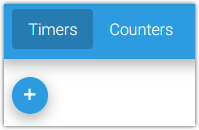
Make sure the Timers tab is selected and click the (+) button
-
Name the timer and click the SAVE button
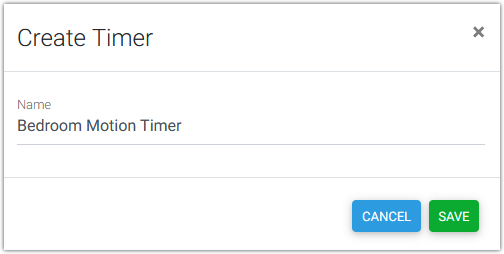
Once created, you can manually use these functions to control your timer:

-
Stop - Only appears when a timer is active, stops your timer at its current time.
-
Resume - Starts your timer from its currently stopped time.
-
Restart - This sets the timer to 0:00:00:00 and starts it.
-
Reset - This resets the timer to 0:00:00:00 but does not stop it.
-
Set... - Allows you to set the timer to any time you wish.
Using Timers in Events
-
Timer triggers: A Timer's Value is...
-
Timer conditions: A Timer's Value is....
-
Timer actions: Control A Timer
Counters
HS4 allows the creation of counter to track the number of times something happens. Counter values can then be used in events (automations) as triggers, conditions or actions. To create a counter, follow these steps:
-
Navigate to Tools > Timers/Counters
-
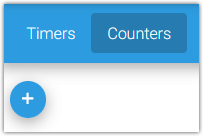
Make sure the Counters tab is selected and click the (+) button
-
Name the timer and click the SAVE button
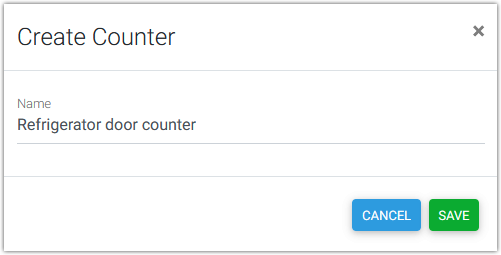
Once created, you can manually use these functions to control your counter:
-

Increment - Increases the counter by 1.
-
Decrement - Decreases the counter by 1.
-
Reset - Resets the counter to 0.
Using Counters in Events
-
Counter triggers: A Counter's Value is...
-
Counter conditions: A Counter's Value is....
-
Counter actions: Control A Counter