

Use this guide for migrating from HomeTroller Pi G3 hub to a HomeTroller Pi G8 hub
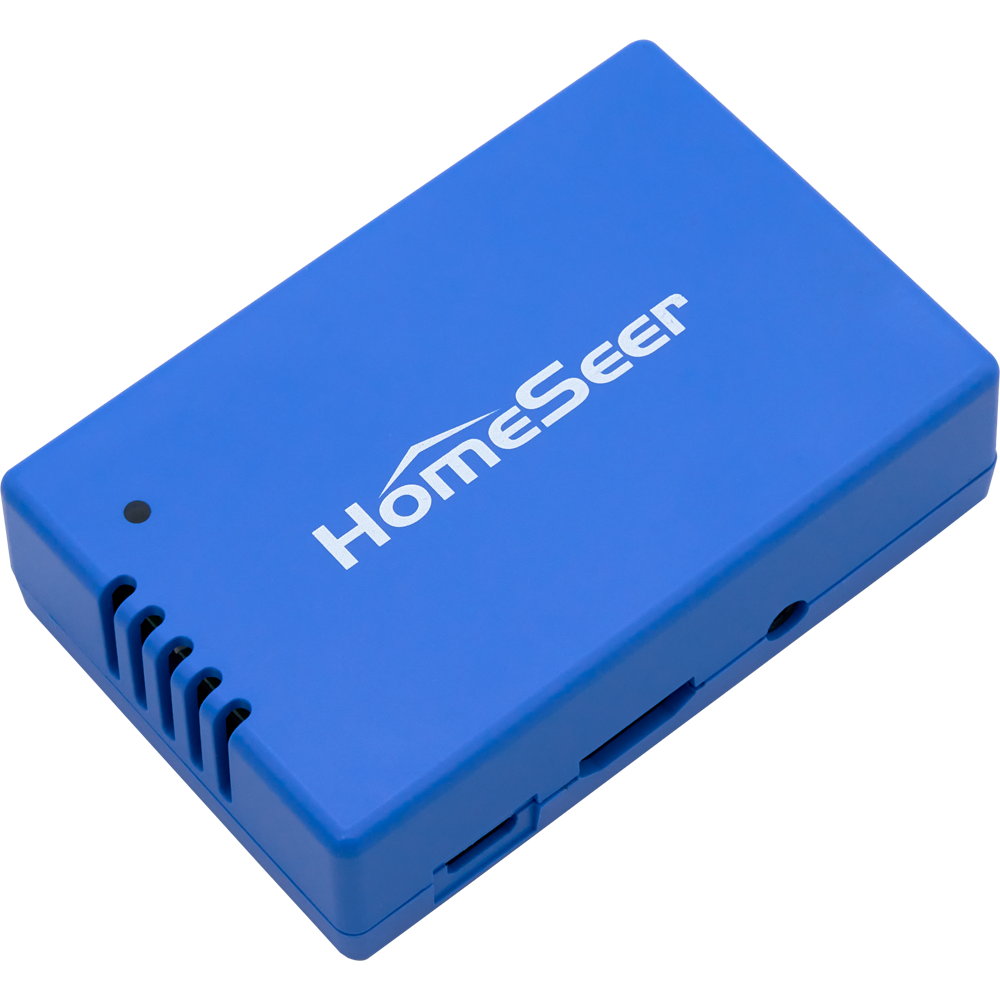
Overview
Users who wish to migrate or upgrade from their existing HomeTroller Pi G3 hub to a HomeTroller Pi G8 hub can easily accomplish this by following this guide.
Note that “interface” and “controller” are interchangeable terms that refer to the Z-Wave module (“HAT”) that’s physically installed on the HomeTroller hub.
Preliminary Steps
Perform these steps first before proceeding with the migration. DO NOT SKIP THIS
-
Upgrade your HomeTroller Pi G3 to the latest Pi G8 image by following this guide: Upgrading HomeTroller Pi G3 Image
-
Update HS4 to v4.2.22.4 or later
-
Migrate from the legacy Z-Wave plugin to Z-Wave Plus using this guide: Migrating from Z-Wave to Z-Wave Plus
Steps
-
Back up your existing Z-Wave controller
-
Navigate to Plugins > Z-Wave Plus > Advanced Functions and select Backup Interface. Complete the steps and make a note of the backup file name.
-
-
Enable Z-Wave Plus to display the Z-Wave JS Front-End
-
If you don’t have access to the Z-Wave JS Front-End, navigate to Plugins > Z-Wave Plus > Manage Networks, scroll to the Z-Wave JS Network section and tick the box next to Show ZWave JS Front-End and click SAVE.
-
-
Determine the Z-Wave SDK of your existing Z-Wave controller
-
Navigate to Plugins > Z-Wave Plus > Z-Wave JS Front-End. The first device on the Control Panel page is your Z-Wave controller. This will be device ID 001 and the Z-Wave SDK will appear in the FW column. 👉 If the SDK version is lower than v6.61, follow the procedure in Converting Older Z-Wave Backups before advancing to the next step.
-
-
Perform a complete system backup
-
Navigate to Tools > Backup/Restore and click BACKUP NOW. A system backup will commence. This may take several minutes to complete.
-
-
Download system backup to your PC
-
Navigate to Tools > Backup/Restore and click LOCAL RESTORE. Click the Select Date field and choose today’s date. Select the backup you just created and click the Download link to download the backup to the downloads folder of your computer.
-
-
Shut down your old hub and power up your new hub
-
Disconnect the power and network cables from you old hub. Refer to the HomeTroller Pi G8 Quick Start Guide to get started with your new HomeTroller Pi G8 hub.
-
-
Restore old hub backup to your new hub
-
Navigate to Tools > Backup/Restore and click LOCAL RESTORE, then click UPLOAD BACKUP. Browse your computer and select the backup zip file that was downloaded in step 10 above.
-
Once the backup has finished uploading to your G8 hub, click the radio button to the left of it and click the EXECUTE button. This will restore the backup to you new hub.
-
-
Restart the new hub
-
Once the restore has finished, navigate to Tools > System > Restart System and RESTART the hub.
-
-
Restore your Z-Wave network to the new hub
-
Navigate to Plugins > Z-Wave Plus > Advanced Functions and select Restore Interface. Select the backup created in step 1 above or the converted backup file created in step 3 above and complete the steps.
-
Congratulations! Your new hub should be fully operational and your Z-Wave devices should now works as expected.