

Use this guide to learn more about the WS300 advanced features, specifications and warranty.
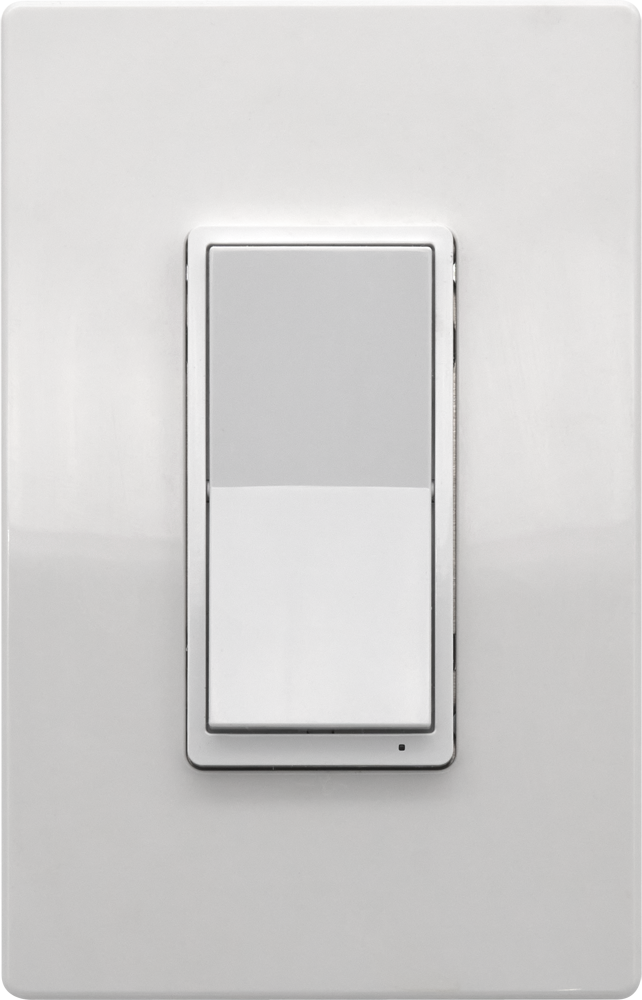
Overview
The HomeSeer WS300 Smart Wall Switch includes several advanced features designed to support automation, notifications, and flexible operation in Z-Wave smart homes. These features are typically configured using your Z-Wave hub or by using paddle tap sequences.
Multi-Tap Scene Control
The WS300 supports multi-tap scene control, allowing the switch to trigger automations when the paddle is tapped multiple times.
Supported Tap Sequences
-
1 Tap
-
2 Taps
-
3 Taps
-
4 Taps
-
5 Taps
-
Press & Hold
-
Release from Hold
These taps can be performed on either the top or bottom paddle, allowing a large number of scene triggers.
How It Works
Each multi-tap sequence sends a Z-Wave Central Scene command to the hub. Automations can then be created to respond to these events.
Example Automations
Examples of scenes you might create:
-
Double-tap up → Turn on entryway lights
-
Triple-tap down → Activate away mode
-
Four taps up → Turn on all lights
-
Five taps down → Turn off entire home
Some hubs support up to 14 scene triggers using combinations of taps and holds.
RGB LED Indicator
The WS300 includes a programmable RGB LED indicator that can display different colors and statuses.
LED Modes
Normal Mode
The LED reflects the on/off state of the connected load.
Available colors include:
-
White
-
Red
-
Green
-
Blue
-
Magenta
-
Yellow
-
Cyan
-
Pink
-
Orange
-
Teal
-
Custom color (see Custom LED Color Control below for details)
Status Mode
In this mode the LED displays status notifications for other devices or events in the home.
Examples:
-
Yellow → Garage door open
-
Blinking Yellow → Garage door opening or closing
-
Red → Garage door open after 10 pm
-
Blinking Blue → Water leak detected
-
Green → All doors & windows closed
When a status command is received, the switch temporarily leaves normal mode and displays the notification until the status is cleared.
Z-Wave Parameter Controlled Features
The following features may be controlled using Z-Wave parameter commands.
A table of all the Z-Wave parameter commands with available values, and default settings is provided at the bottom of this doc.
Custom LED Color Control
The WS300 supports custom LED colors by adjusting RGB values.
Individual brightness levels can be set for:
-
Red
-
Green
-
Blue
These are controlled with Z-Wave parameters:
-
Parameter 41 → Red level
-
Parameter 42 → Green level
-
Parameter 43 → Blue level
This allows the LED to be customized for nearly any color. We recommend using the default parameter values below as a starting point.
Default Z-Wave parameter values for standard colors
|
Color |
Red
|
Green
|
Blue
|
|---|---|---|---|
|
White |
10 |
100 |
100 |
|
Red |
50 |
0 |
0 |
|
Green |
0 |
100 |
0 |
|
Blue |
0 |
0 |
100 |
|
Magenta |
20 |
0 |
100 |
|
Yellow |
10 |
100 |
0 |
|
Cyan |
0 |
100 |
100 |
|
Pink |
25 |
20 |
25 |
|
Orange |
5 |
10 |
0 |
|
Teal |
0 |
100 |
10 |
LED Notifications and Effects
The LED can be customized further using Z-Wave parameters.
Available options include:
LED Color Selection
-
Choose the color displayed in normal mode: Z-Wave parameter 14
-
Choose the color displayed in status mode: Z-Wave parameter 21
LED Brightness
The LED brightness may be adjusted for better visibility or better compatibility with environments.
-
Adjust LED brightness levels: Z-Wave parameter 34
LED Blink
The LED can be configured to blink at a programmable frequencies. This is particularly effective for alerts.
-
To configure the LED to blink in status mode: Z-Wave parameter 31
-
To configure the blinking frequency: Z-Wave parameter 30
Smart Bulb Mode
Smart Bulb Mode allows the WS300 to control smart lighting systems without cutting power to the bulbs.
How It Works
When enabled:
-
The load remains permanently powered
-
Paddle presses do not control the load
-
Paddle presses send Z-Wave commands to the hub
This allows the switch to act as a scene controller for smart bulbs.
Typical Use Case
If the circuit powers smart bulbs such as:
-
Zigbee bulbs
-
Wi-Fi bulbs
-
Z-Wave bulbs
the switch can trigger automations instead of turning the bulbs off.
Enable Smart Bulb Mode
Use either method to enable Smart Bulb Mode
-
Tap sequence: 3 taps UP + 1 tap DOWN (↑↑↑↓). This toggles the feature on or off.
-
Configure using Z-Wave parameter 37.
Toggle Mode (Single-Button Operation)
Toggle Mode allows the switch to operate like a single push-button toggle.
When enabled:
-
Pressing either paddle toggles the load
-
The load turns ON if OFF
-
The load turns OFF if ON
This feature is helpful for:
-
Dark rooms
-
Accessibility installations
-
Users who prefer simple operation
Toggle Mode is configured using Z-Wave parameter 35.
Instant Status
The WS300 supports instant status reporting to the Z-Wave controller.
Whenever the switch changes state:
-
The switch sends a Switch Binary Report
-
Scene events use the Central Scene command class
This allows the hub to respond immediately to switch activity.
Z-Wave Associations
The WS300 supports direct device-to-device communication using Z-Wave associations.
Supported Association Groups
Group 1 – Lifeline
-
Reports status to the primary controller
Group 2 – Basic Set
-
Allows the switch to directly control other Z-Wave devices
Each group supports up to five associated devices.
Example:
-
One switch can directly control several other switches or lights without hub involvement.
Z-Wave SmartStart
The WS300 supports Z-Wave SmartStart provisioning.
Using the SmartStart inclusion procedure for your specific hub…
-
Scan or manually copy the SmartStart code from the sticker on the switch
-
Add the device to your hub
-
Power the device
The switch will automatically join the network within a few minutes when powered near the controller.
Power Failure Recovery
The WS300 can control how the load behaves after power is restored.
Available options:
-
OFF after power returns
-
ON after power returns
-
Restore previous state after power returns
This behavior is configured using Z-Wave parameter 38.
Z-Wave Parameter Commands
Many advanced features can be adjusted with Z-Wave parameters.
|
Parameter |
Description |
Bytes |
Value |
Default |
|---|---|---|---|---|
|
3 |
Sets LED operation (in normal mode) |
1 |
0 = LED OFF if load is OFF
|
1 |
|
4 |
Sets paddle’s load orientation |
1 |
0 = Top of Paddle turns load ON
|
0 |
|
6 |
Enables/Disables Central Scene and multiple tap functions |
1 |
0 = Central Scene Enabled, controls load with delay. Enables Multi-tap and press and hold
|
0 |
|
13 |
Sets the display mode of the LED |
1 |
0=Normal mode (LED shows load status)
|
0 |
|
14 |
Sets the Normal display mode LED color |
1 |
Possible values: 0-10
|
0 |
|
21 |
Sets the Status mode LED color |
1 |
Possible values: 0-11
|
0 |
|
30 |
Sets the Blink frequency for LED in Status mode |
1 |
Possible values: 0, 1-255
|
5 |
|
31 |
Sets LED to Blink in Status mode |
1 |
0=LED does not blink in status mode
|
0 |
|
34 |
Sets LED Brightness Level |
1 |
Possible values: 0-6
|
5 |
|
35 |
Sets Paddle Behavior for Switch Mode (Toggle Feature) |
1 |
0 = Top paddle press turns load ON. Bottom paddle press turns load OFF. 1 - Either paddle press turns load ON if OFF and OFF if ON. |
0 |
|
37 |
Sets Load Control via Paddle (Smart Bulb Feature) |
1 |
0 = Load is controlled with paddle 1 = Load is not controlled with paddle |
0 |
|
38 |
Sets Power Fail Recovery Behavior |
1 |
0 = Load is OFF
|
2 |
|
40 |
Sets Companion Switch Mode |
1 |
0 = Toggle Mode
|
0 |
|
41 |
Sets RED Brightness Level of the LED |
1 |
Possible values: 0-100
|
5 |
|
42 |
Sets GREEN Brightness Level of the LED |
1 |
Possible values: 0-100
|
5 |
|
43 |
Sets BLUE Brightness Level of the LED |
1 |
Possible values: 0-100
|
5 |
Specifications
|
Power |
Requirements |
120VAC / 60 Hz |
|---|---|---|
|
Max Load |
Resistive |
15A (1875W) |
|
Incandescent |
1250W |
|
|
Motor |
1/2 HP |
|
|
Temperatures |
Operating | Storage |
0℃ → 40℃ | -20℃ → 60℃ |
|
Z-Wave |
Frequency |
908.4/916 MHz (US/CAN) |
|
Range |
100+ ft. (line of sight) |
|
|
Dimensions |
Switch body (inside electrical box) |
2.75 x 1.69 x 1.19” (HxWxD) |
|
Certifications |
Z-Wave Plus LR, ETL |
|
Warranty
HomeSeer warrants to the original purchaser that this product, for the warranty period, will be free from material defects and workmanship. This warranty is subject to proper installation and operation of the product. HomeSeer’s sole obligation, under this warranty, is to repair, replace or correct any defect that was present at the time of delivery. This warranty does not extend to consequential or incidental damage to other products that may be used with this product. Warranty claims must be submitted in writing directly to HomeSeer at http://HomeSeer.com . Warranty period: limited 2 years from date of purchase.