

Manual Install
|
Windows |
Linux |
|---|---|
|
If you need to perform a new install or the update is not available through setup, run the installer |
For standard Linux tar file, check in setup for an update, or manually update with the TAR file |
Existing HS4 systems or HomeTroller Hubs
-
Navigate to Setup > General and click the CHECK UPDATE button.
-
Click the INSTALL UPDATE or INSTALL BETA button (depending on the release type).
-
Follow the directions that appear. This may take several minutes to complete.
Changes from 4.2.23.0 to 4.2.24.0
Highlights
-
This release focuses on usability with the update HomeSeer mobile app. The update mobile app is now available for Android. Search the Play Store for “HomeSeer”.
-
Dashboard card enhancements - usability
-
Database optimizations - faster, more secure
-
Energy monitoring changes - stability and reliability
-
Linux tools improvements
-
Permissions improvements
Full Change List
-
Changes throughout the UI to better support mobile screens
-
Added better support for screen readers
-
Added ability to add custom device names to multi-feature dashboard card
-
When searching for features on the multi-feature card, non matches are set as hidden
-
Added a better solution for checking the password in Linux Tools, this should now function on any version of Linux
-
Camera recordings folder was not getting pruned unless recordings page was viewed. This was causing disk to fill. Pruning now happens once a day.
-
On Linux based systems, the Linux Tools menu now gives access to a full terminal.
-
Fixed some errors when calculating disk space for backups.
-
Updated shop page to allow HS4 Legacy plugins to appear in the Legacy section.
-
Fixed issue where dashboards were created with user id 0 when the user login name was capitalized.
-
Optimizations to SQLite database
-
Added “uncheck all” to device list on energy page
-
The selected list of devices in the energy page device list is now saved
-
Fixed usage/cost radio controls on energy page
-
Added ability to cycle through dashboards using mobile app
-
Disabled bulk edit for non admin users
-
Added setup option to report all devices to HSTouch regardless of device visibility setting
-
If a user does not have access to a feature, the navigation menu will omit that feature
-
Fixed device sorting Asc/Desc so its sorts second location alphabetically
-
Fixed select image file picker on dashboard settings so it appears in front of settings dialog
Reverting to a Previous Version
If you wish to revert to a previous version, you'll need to follow the steps below. Starting with beta 4.2.17.2, a new backup feature was added to back up your configuration whenever you update your HS4 version. The backup may be retrieved from Setup.
When running Beta versions of HS4 it is advised that you always perform a backup from the Tools menu. This is an alternate way to go back to a previous config.
Windows
-
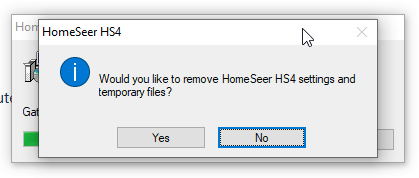
Uninstall the beta. Do not remove HS4 settings and temporary files.
-
Install the previous version.
-
Launch HS4 and navigate to Setup > General and click Edit Config
-
Select the config file that was created when the beta was installed. The name will contain _before_4.2.x.x.json
-
Check your events to confirm they're all there and the actions are correct
Linux
-
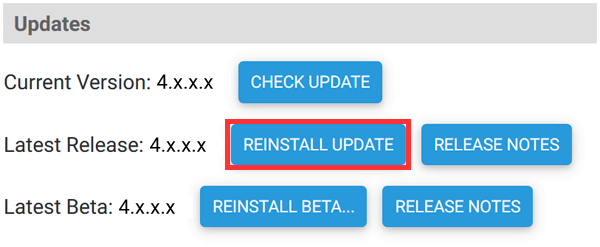
Navigate to Setup > General and click REINSTALL UPDATE
-
Once installation is complete, navigate to Setup > General and click Edit Config
-
Select the config file that was created when the beta was installed. The name will contain _before_4.2.x.x.json
-
Check your events to confirm they're all there and the actions are correct