

Use this guide to get started with your PS100.
What’s in the Box
-
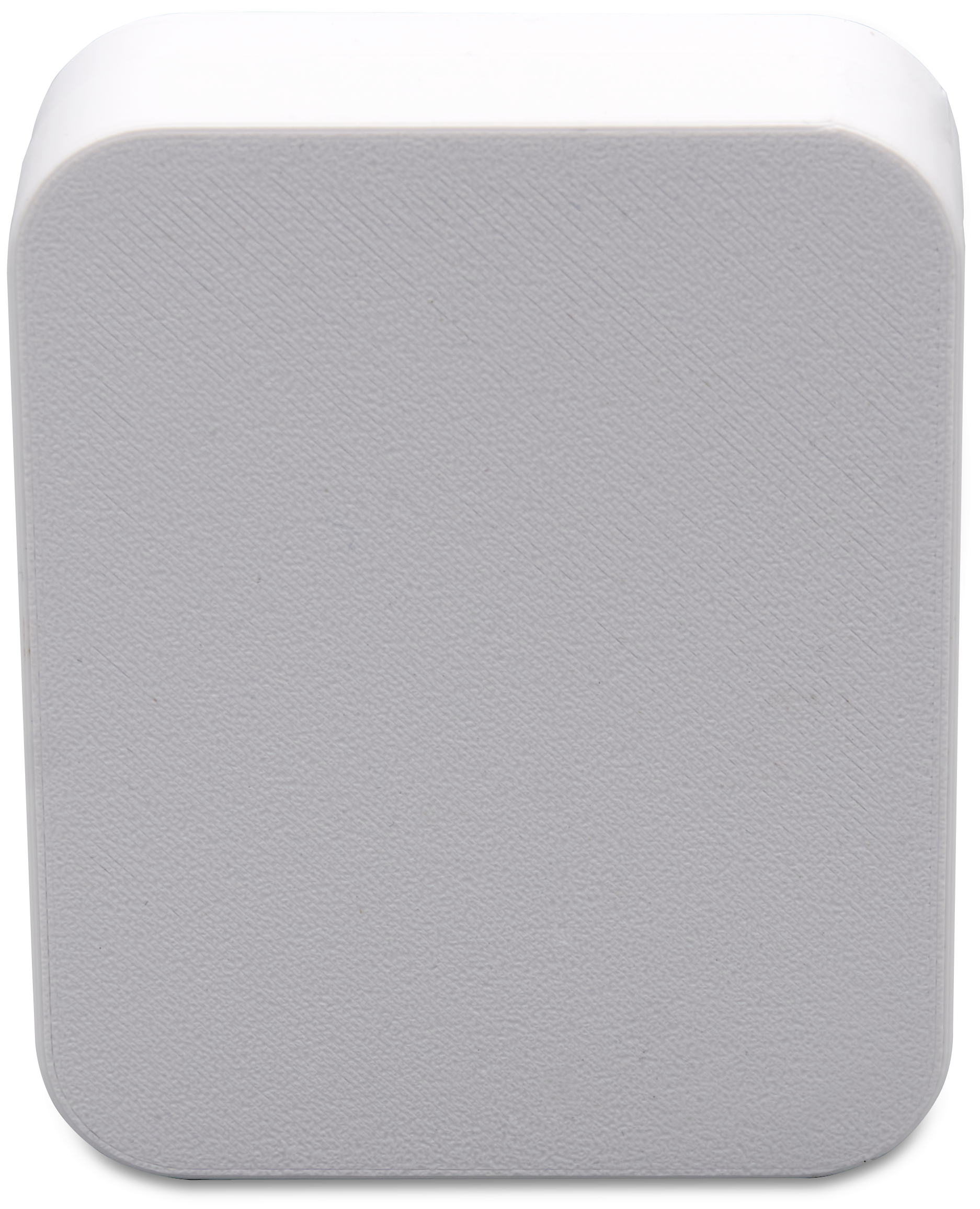
PS100 presence sensor in 3D printed enclosure
-
5 volt power supply with attached right-angled USB-C cable
-
Adjustable sticky mount
-
3D printed shelf stand
-
QR code documentation card
Steps
-
Unbox & Power Up
-
Take everything out of the box.
-
Before connecting power, decide how you will position your PS100. You have two options:
-
Wall Mount: Peel the protective backing from both sides of the adhesive mount. Attach one side to the back of the sensor, taking care not to obstruct the USB-C connector or Z-Wave network button. Attach the other side to the wall in the desired location.
-
Shelf / Desk Mount: Place the 3D printed stand at your desired location and set the sensor into the slot on the stand.
-
-
Plug the right-angle end of the USB-C cable into the USB-C port on the PS100 sensor.
-
Plug the power adapter into a standard wall outlet. Once powered, the two RGB LEDs on the front of the unit will flash blue, red, then green to indicate the sensor is active. After that, the LEDs flash red when presence is detected and green when no presence is detected.
-
-
Add PS100 to your Z-Wave Network
-
Open your hub's app or interface and put it into Z-Wave inclusion mode. (Refer to your hub's manual for specific steps.)
-
Once your hub is ready, press and release the red Z-Wave button on the back of the PS100.
-
Monitor your hub's app and wait for the inclusion process to complete. The hub will confirm when the device has been successfully added.
-
-
Verify the Inclusion
-
After successful inclusion, your hub should display the PS100 with the following features - If any features are missing, check with your hub manufacturer to confirm full PS100 support.
-
(Most Hubs) Presence / no presence status (Binary sensor or Home Security-Motion command class)
-
(HomeSeer Hubs) Combined color control for the RGB LEDs
-
-
-
Quick Sensitivity Test
-
Stand within 4.9 ft (150 cm) of the sensor — the LEDs should flash red (presence detected).
-
Step away and remain still — after the no-motion timeout (default: 10 seconds), the LEDs should change to green (no presence).
-
Once confirmed, adjust the sensitivity parameters in your hub to cover the full range needed for your space.
-
IMPORTANT: Once testing is complete, reconfigure the detection ranges using Z-Wave parameters #6–#13 in your hub to match the size of your room. Ranges are adjustable from 0–600 cm (0–19.6 ft) in eight zones. See PS100 Specs & Z-Wave Parameters for details on setting parameters and adjusting sensitivity.
Troubleshooting
If you have difficulty adding the PS100 to your Z-Wave network, you may need to exclude it first or factory reset it if exclusion fails.
Exclude the PS100 from
-
Put your hub into Z-Wave exclusion mode.
-
Press and release the red Z-Wave button on the back of the PS100.
-
Monitor your hub's app and wait for the exclusion process to complete.
Factory Reset
Only use this procedure if your Z-Wave controller is missing or inoperable, or the PS100 is not responding to Z-Wave commands.
-
Press and hold the red Z-Wave button for 30 seconds.
-
Release the button. The PS100 will reset to factory defaults.
Factory reset clears all Z-Wave association data. You will need to re-include the device in your network after a reset.
Notes
-
The PS100 enclosure and stand are 3D printed at HomeSeer. Minor surface imperfections may be present. This is normal and does not affect performance.
-
You can use any USB-C power adapter (5V) if you prefer not to use the included one. A USB port on a smart home hub or a USB charging block can also work.
-
At the time of this writing, the PS100 may appear as an unknown product in Z-Wave JS UI (product 0x0204, code 0x0003). This does not affect functionality and will be resolved in a future Z-Wave JS UI update.