

As with all Beta releases, make sure you back up your system before installing this Beta!
Manual Install
|
Windows |
Linux |
|---|---|
|
If you need to perform a new install or the update is not available through setup, run the installer |
For standard Linux tar file, check in setup for an update, or manually update with the TAR file |
Existing HS4 systems or HomeTroller Hubs
-
Navigate to Setup > General and click the CHECK UPDATE button.
-
Click the INSTALL BETA button.
-
An Install Beta pop up appears. Click INSTALL to begin the installation. This may take several minutes to complete. Your controller or computer will restart after the installation completes.
HS4 Changes from 4.2.24.6 to 4.2.24.10
-
Removed “test” text from plugins page
-
When view a device feature (from devices view), a devices setting link has been added that links to the main device settings
-
Remove history settings from HS4 root devices, which have no value or status to record.
-
Show history toggles in blue for the selected choice and grey for the others.
-
Move the Tools > History device picker onto the Devices line, with a Select button beside it and at the bottom of the list.
-
Show history values with the regional decimal and thousands separators.
-
Add a CSV download of a device's changes and use icon buttons for the history pager.
-
Show a history icon on the Devices page for features that record history.
-
Updates to some pages for screen readers
-
Fix downsampled history graphs drawing values at times they were never recorded.
-
Add a Tooltip graph setting, hidden by default and never shown on phone-sized screens.
-
Fit history graph margins to their axis labels and widen the graph on phones.
-
Let vertical swipes on a history graph scroll the page on touch screens.
-
Add a per-device valid range to Graph Settings and let admins delete single records from the Changes table.
-
Show the state in history crosshair labels, name timelines under their bands, and wrap a left-aligned device legend shown whenever more than one device is charted.
-
Update HSConsole exe file to reference new SQLite dll in sqlite folder for Linux
-
Changed plugin and notifications updates to access the server in the background so the web site does not lock up
-
Changes to INI file access so a failed read does not write an empty file
-
Fix for notifications page displaying a scriban error if updates file was empty
-
Fix MyMkDir doubling the HS path on Linux (empty <HS>/<HS>/html/<PluginId> folders created on plugin install)
-
Added plugindisable and pluginenable to the JSON API, one parameter, plugid
HS4 Changes from 4.2.24.0 to 4.2.24.6
-
Added support for device history logging and graphing
-
Fixed setup stuck on spinner when checking for updates
-
Return an error when a plugins postback throws and error
-
Fixed last change time on device cards in grid view now display the time the latest feature changed
-
Removed “Scene Activation” feature from JSON device status response. This was causing issues with Alexa and Google Home
-
On Linux, apps that use control keys, such as nano, now work properly in the Linux tools shell.
Reverting to a Previous Version
If you wish to revert to a previous version, you'll need to follow the steps below. Starting with beta 4.2.17.2, a new backup feature was added to back up your configuration whenever you update your HS4 version. The backup may be retrieved from Setup.
When running Beta versions of HS4 it is advised that you always perform a backup from the Tools menu. This is an alternate way to go back to a previous config.
Windows
-
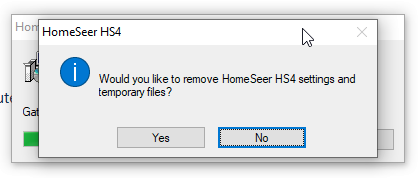
Uninstall the beta. Do not remove HS4 settings and temporary files.
-
Install the previous version.
-
Launch HS4 and navigate to Setup > General and click Edit Config
-
Select the config file that was created when the beta was installed. The name will contain _before_4.2.x.x.json
-
Check your events to confirm they're all there and the actions are correct
Linux
-
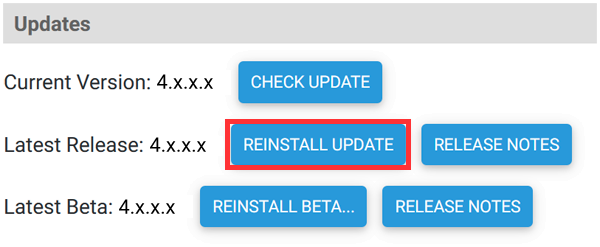
Navigate to Setup > General and click REINSTALL UPDATE
-
Once installation is complete, navigate to Setup > General and click Edit Config
-
Select the config file that was created when the beta was installed. The name will contain _before_4.2.x.x.json
-
Check your events to confirm they're all there and the actions are correct