

Add a Z-Wave Network
Complete the steps below to add a Z-Wave network to your HS4 system.
-
Install and enable the Z-Wave Plus plugin using the procedure outlined in Installing Plugins
-
Navigate to Plugins > Z-Wave Plus > Mange Networks and click ADD NEW NETWORK.
-
The Add a Z-Wave Network will appear. Follow these steps:
-
Instance Type: Leave set to Automatically* and click CONTINUE
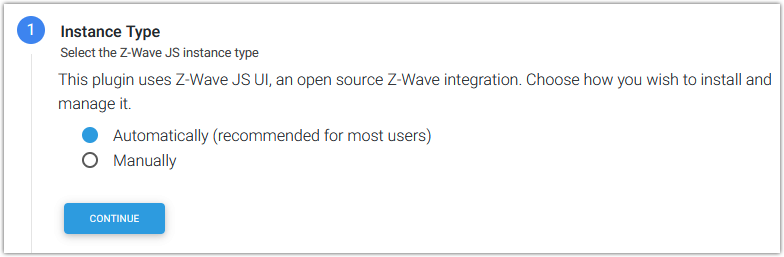
*If desired, it is possible use a Manually installed instance of Z-Wave JS UI but HomeSeer does not provide support for that procedure.
-
Settings:
-
Network Name: Enter a network name of your choice. If unsure, just enter “SmartStick”, “Z-NET” or something similar.
-
Connection Type: Select from the following:
-
USB - Most Z-Wave USB stick controllers
Then choose the serial port assigned to your USB stick -
Network (TCP) - for network connected controllers
Then enter the URL for your network connected controller -
Z-NET - for HomeSeer Z-NET or Z-NET PRO controllers
Then select the Z-NET from the drop down list -
Internal - for HomeTroller Pi hubs with internal Z-Wave controllers
Then select the serial port assigned to your internal controller
-
-
RF Region: Select the region that you’re in or are closest too (typically). This will determine the frequency that your Z-Wave network will operate on.
-
-
-
For the Security Keys Configuration, choose from the following, then click CONTINUE
-
Generate random security keys
Select this if you’re building a Z-Wave network from scratch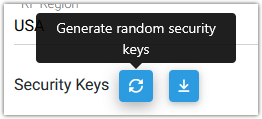
-
Import security keys from legacy Z-Wave plugin
Select this if converting from the legacy Z-Wave plugin to Z-Wave Plus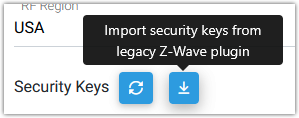
-
Enter security keys manually
Select this if moving a Z-Wave network from another system to Z-Wave Plus
-
-
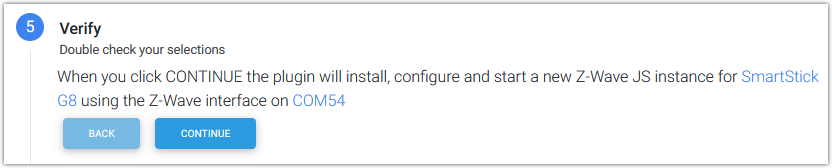
The Verify step will summarize your settings. If everything looks right, click CONTINUE. If not, click the BACK button(s) and edit the settings as needed.
-
Once the network has been created, click FINISH.