Access & Registration
-
From any device connected to the same network as your system (HomeSeer hub), open a web browser and navigate to HomeSeer’s system finder at find.homeseer.com. You should see an entry for your system. Click on that to access the hub and open the HS4 Registration Wizard.
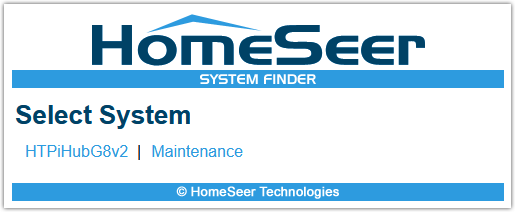
(system finder displaying HomeTroller Pi G8 system) -
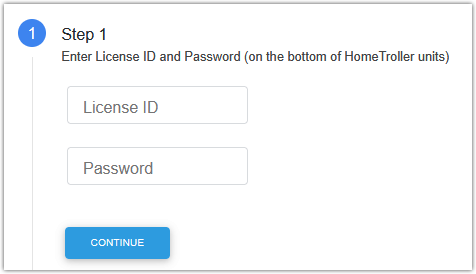
Enter your HS4 license codes (License ID & Password) and click CONTINUE. If your purchased HS4 software separately, your license codes will have been emailed to you. If you purchased a HomeTroller hub, they will be on a sticker on the bottom of your unit.
-
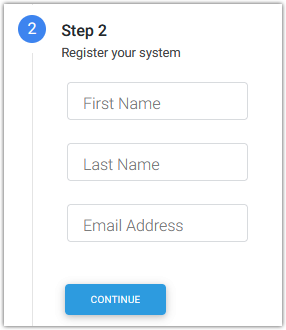
In the next step, you’ll be prompted to register the hub. Enter your First Name, Last Name and Email Address and click CONTINUE.
-
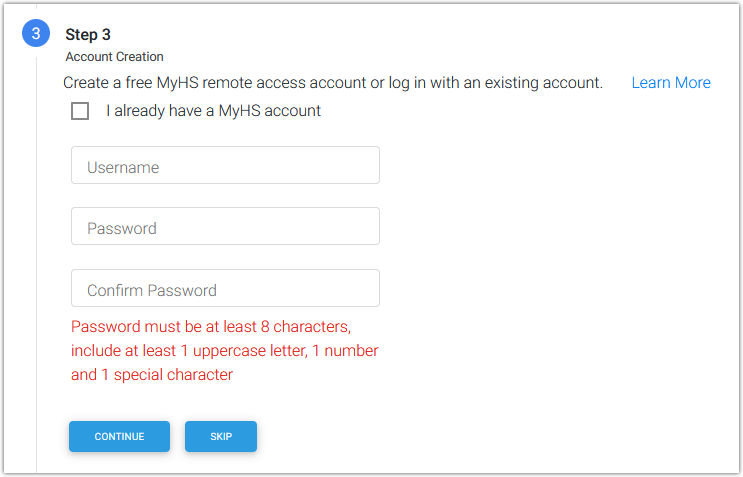
In the next step, you’ll be prompted to create a free MyHS remote access account. To do enter an email address into the Username field (you can use the same one as above to keep things simple), then enter and confirm a Password, then click CONTINUE.
-
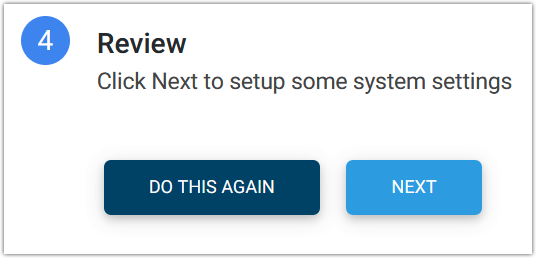
If you need to change any information, click DO THIS AGAIN. Otherwise, click NEXT.
-
Next up is the Systems Settings page.
-
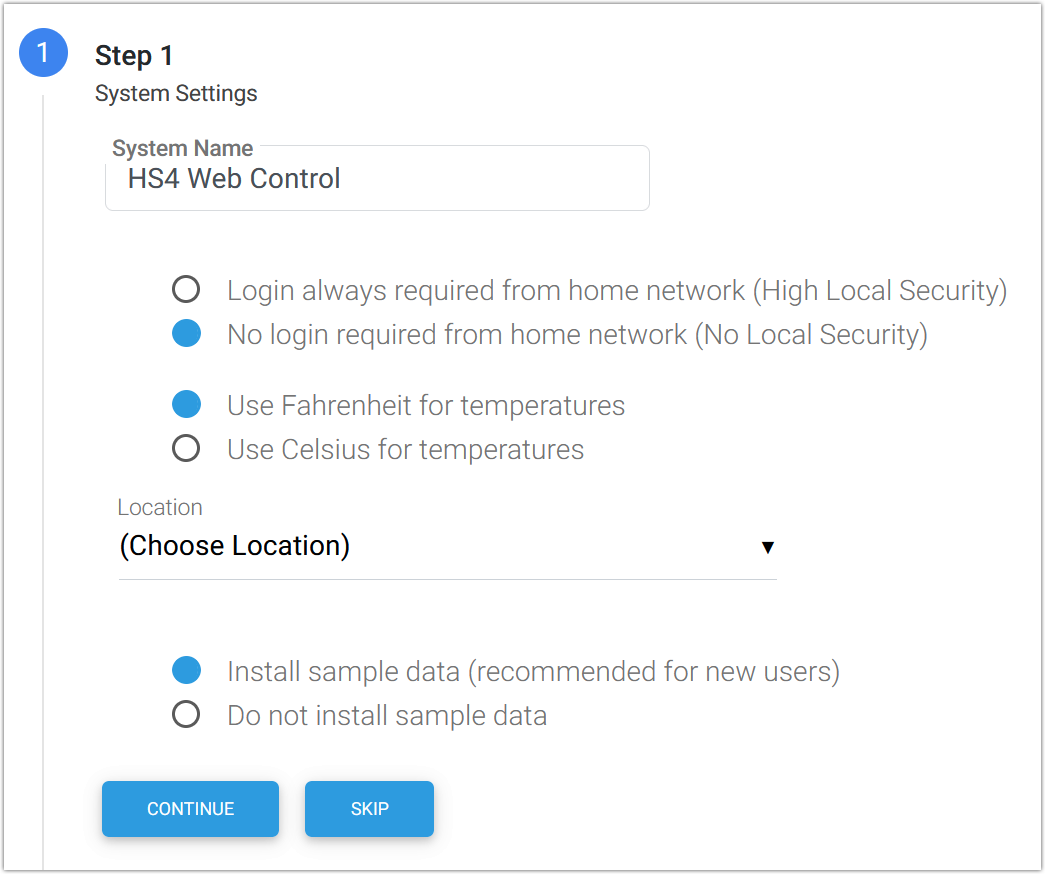
The default system name is HS4 Web Control. Enter a different name if you like or leave it as is. This can be changed later if you want.
-
Choose a Local Security setting to suit your needs for you local network. No Local Security allows quick access to the system without requiring a login. High Local Security requires a login for all local network access.
-
Choose the appropriate temperature scale for your area or region.
-
Open the Location menu and select a location that’s close to you. Don’t worry about being too precise here… you’ll be able to enter precise longitude and latitude in the HS4 settings later on if you like.
-
In the last step, choose from one of these two options and click CONTINUE:
-
Install sample data if you’re new to HomeSeer and would like to trial the program with usable sample devices and events.
-
Do not install sample data if you’re already familiar with HomeSeer and are ready to set up and configure your system.
-
-
-
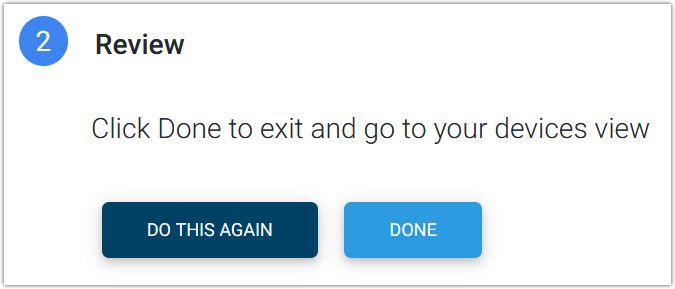
Click DONE to finish or DO THIS AGAIN if you need to make any changes. When done, the Devices page will appear. If you’ve installed sample data, sample devices will appear. Otherwise the page will be empty and ready for you to move to the next section.