

Information on using the Z-Wave Plus Advanced Functions and Diagnostics to troubleshoot Z-Wave problems.
Overview
If your Z-Wave network performance is slow, inconsistent or unpredictable, that may indicate a problem with communication or with the network configuration or with the devices themselves. In this guide, we’ll explore the steps required to diagnose and fix these problems.
Diagnosis
-
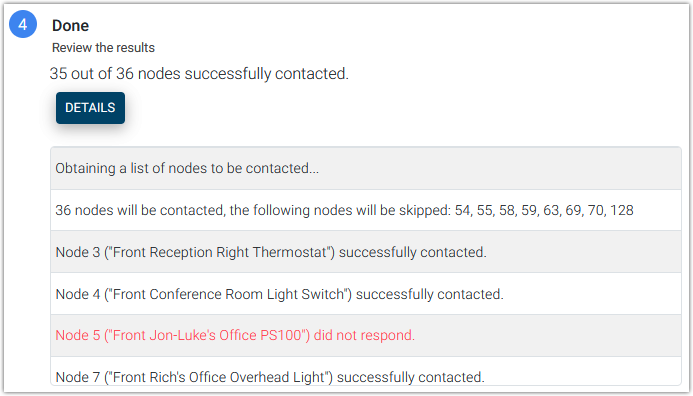
The easiest and quickest way to determine how well your Z-Wave devices are communicating is to run a system wide Ping All Nodes test. Below is a sample of the results of that test showing that device Node 5 (Jon-Luke’s Office PS100 sensor) is not responding.
-
The HS4 system log may also be used to diagnose problems. However, unlike the Ping All Nodes test above, the log only displays issues based on Events that run or devices that interact with the system organically. Follow these steps to look for Z-Wave problems:
-
Navigate to Tools > Log.
-
Make sure the Start Date and (optionally) End Date are set to include a range of time where Z-Wave network problems have occurred.
-
Click the FROM FILTER button and select ZWavePlus.
-
Click the TYPE FILTER button and select Error.
-
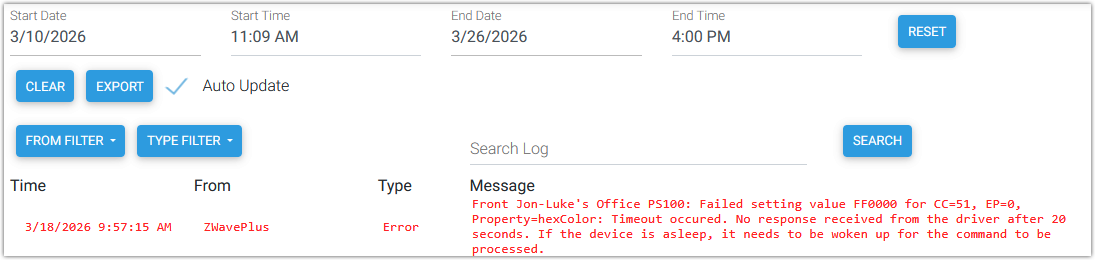
Now scroll through the log and look for errors. These will be red entries (like the one shown below). Make note of the devices involved. In this example, an error occurred with the device Front Jon-Luke’s Office PS100 sensor.
-
-
Treatment
Once you’ve identified the devices that are unresponsive, you’ll need to determine why. Devices can be unresponsive for these reasons:
-
They’re out of range or they’re not recognized by neighboring devices.
-
They’ve lost their Z-Wave programming and are no longer in the network.
-
They’re unplugged.
-
They’re defective.
Steps
-
Run the Ping Node function for one of your problem devices to confirm it’s unresponsive.
-
Select another device (a responsive one!) that’s near your problem device and run the Rebuild Routes function for that device. If that device can communicate with the problem device, it should be added to the network mesh.
-
Re-run the system wide Ping All Nodes test and check for improvements. If none are found, repeat step 2 for a different nearby device. Repeat these three steps for all remaining problem devices.
While the steps above can usually fix simple communication issues, they won’t work for devices that are defective of have lost their Z-Wave programming. In those cases try the following:
-
Run the Remove Failed Node function on the problem device.
-
Perform a factory reset on the problem device. See the manufacturer’s user guide for help with this.
-
Re-include the device back into your network using the procedure in Add Device.
-
If the inclusion succeeds, great! Test the device and update the HS4 Events that include this device.
-
If the inclusion fails, the device may be defective and may need to be replaced.
-