

Use this guide to update the HomeTroller Pi G3 to the latest HomeSeer Pi Hub image
Overview
At this writing (12/5/25), the latest Z-Wave Plus and Zigbee Plus plugins require a newer OS than the one that comes on the HomeTroller Pi G3. To use these plugins, owners of the Pi G3 need to upgrade their system, and they have three upgrade options available:
-
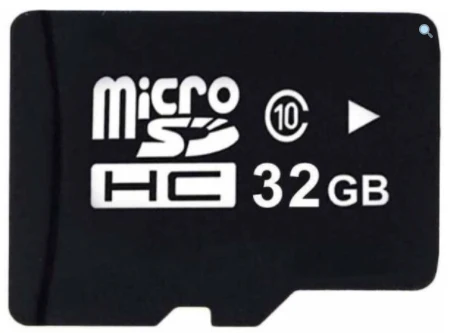
Option 1: Buy a HomeTroller PI G3 microSDHC Upgrade and replace the microSD card in your HT-PI-G3. (the easy option)
-
Option 2: Flash your own microSD card with the HT-PI-G8 image (the less easy but more cost-effective option)
-
Option 3: Manually upgrade the OS from Buster to Bullseye or newer. (HomeSeer cannot provide support for this option)
Instructions for both Option 1 and Option 2 are available in this document.
Considerations
-
Options 1 and 2 will change the name of the system to HTPiHubG8 when displayed in the System Finder. Be aware that the System Finder may take some time to refresh; the new listing will appear immediately, but the previous system name may also be listed for a short time.
-
Options 1 and 2 will result in a like-new system with none of your previous data. Once connected to HS4, you will need to register the system using your exciting HT-PI-G3 license before your system backup can be restored.
-
Your HS4 license ID and password can be found on the bottom of your assembled controller.
-
-
After restoring your data, you will need to install your Plugins. It is recommended to install the versions of Z-Wave and Zigbee you were previously using and confirm everything is working before beginning the migration to Z-Wave Plus and Zigbee Plus.
-
If you are also interested in upgrading your Pi Hub with the 800 series upgrade kit, please see the documentation here:
Upgrade Procedures
Before making any changes to your system, follow the HS4 backup guide to create and download a backup of your configuration. https://docs.homeseer.com/products/how-to-manually-backup-hs4-locally
Option 1:
Requirements
-
HomeTroller Pi G3
Steps
-
Purchase the HomeTroller PI G3 microSDHC Upgrade from the HomeSeer store.
-
Remove the older microSD card and install the new one, following these steps:
-
Disconnect your HomeTroller from the power adapter and network cable (if using Ethernet)
-
Using a very small Phillips head screwdriver, remove the 4 bolts holding the enclosure together. One of these bolts is only threaded about 1/4” into the enclosure. This is normal.
-
Open the enclosure and remove the main motherboard. Turn the board over to find the current microSD card in its slot.
-
Press the microSD card further into the slot until you hear a click. You will feel the card resisted by a small spring. The card is now free to be pulled from the slot.
-
Insert the new micro SD card into the slot with the pins facing the board and press until you hear the click.
-
Reassemble the HomeTroller
-
-
Power on the HomeTroller and confirm that the unit boots up and is accessible in the System Finder.
-
For further instructions, see the considerations section above.
Option 2:
Requirements
-
HomeTroller Pi G3
-
Blank 32GB Micro USB Class 10 Type A or larger (Can reuse the existing card from the HT-PI-G3)
-
PC with a minimum 31GB of free disk space
-
SD Card reader
Downloads
-
HomeSeer HT-PI-G8 Image (2.3 GB zip file)
-
Etcher (image flashing)
Steps
-
Download the HTPiG8v1.zip file.
-
Once the download is finished, extract the HTPiG8v1.img file from the zip folder. This may take up to 20 minutes.
-
Download, install, and run Etcher.
-
Insert a blank SD card into the SD card reader.
-
Select the HTPiG8v1.img file and the correct drive letter of your SD card. Click Flash. The process could take up to 20 minutes.
-
Remove the older microSD card and install the new one, following these steps:
-
Disconnect your HomeTroller from the power adapter and network cable (if using Ethernet)
-
Using a very small Phillips head screwdriver, remove the 4 bolts holding the enclosure together. One of these bolts is only threaded about 1/4” into the enclosure. This is normal.
-
Open the enclosure and remove the main motherboard. Turn the board over to find the current microSD card in its slot.
-
Press the microSD card further into the slot until you hear a click. You will feel the card resisted by a small spring. The card is now free to be pulled from the slot.
-
Insert the new micro SD card into the slot with the pins facing the board and press until you hear the click.
-
Reassemble the HomeTroller
-
-
Power on the HomeTroller and confirm that the unit boots up and is accessible in the System Finder.
-
For further instructions, see the considerations section above.