

Describes all the display options for a dashboard.
Once in edit mode, the overall settings for the dashboard may be changed by selecting the drop list at the top of the page.

After selecting the “Options” drop list, the following menu appears:
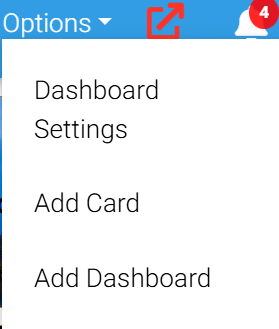
The menu has the following options:
-
Dashboard Settings: Displays a dialog with settings for the dashboard
-
Add Card: Displays a dialog that allows choosing a card to add to the dashboard
-
Add Card: Displays a dialog that prompts for the name of a new dashboard to add.
Dashboard Settings Dialog
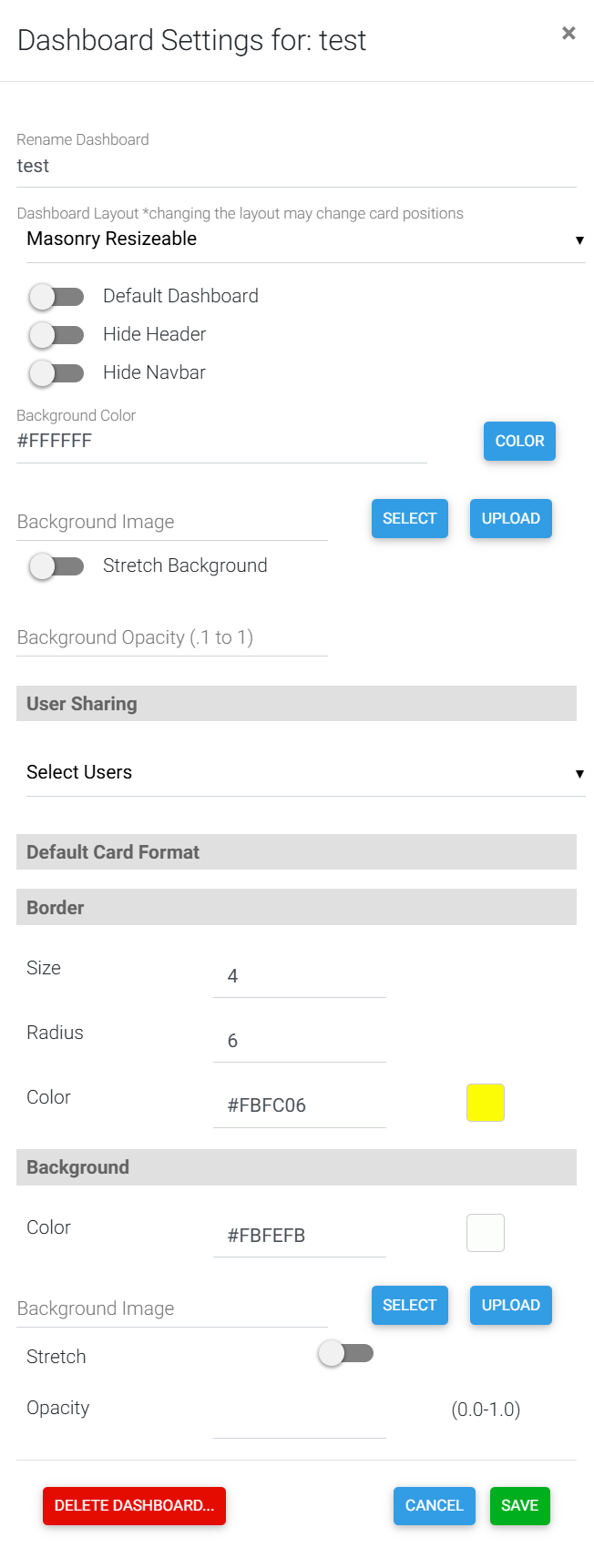
This dialog allows you to customize features of the dashboard such as layout type, borders, background colors and graphic. The “Default Card Format” section allows for settings that will be applied automatically to new cards when they are added to a dashboard. This is similar to a theme.
Settings Details
-
Rename Dashboard: Allows renaming of the currently displayed dashboard.
-
Dashboard Layout: Allows selecting 1 of 4 different layouts. The layout determines how cards are presented.
-
Default Dashboard: If enabled, this dashboard is displayed as the default page when connecting to the HS4 system.
-
Hide Header: Hides to the top header of the page
-
Hide Navbar: Hides the navbar. When the navbar is hidden, a small icon appears in the upper right of the page. This icon can be used to display the navbar when needed. The “Hide Header” and “Hide Navbar” can be used together to support a kiosk like display where the user cannot navigate off the dashboard. Great for tablets.
-
Background Color: Sets the background color of page.
-
Background Image: Sets the background image of the page. An image may be uploaded.
-
Stretch Background: Stretches the background to fill the page. Note that it keeps the aspect ratio of the image so it may not completely fill the page, if the page aspect ratio does not match the image.
-
Background Opacity: Sets the opacity of a background image. Allows for a lighter image. This setting will not affect the background color.
-
Delete Dashboard: Deletes the existing dashboard and all the cards on the dashboard. Will prompt for verification.
-
Default Card Format: Sets some default settings that used when a new card is added to a dashboard.