

Describes how to manage custom cards that display specific information or items.
Custom cards are special HTML files that describe the layout of a specific card. The card is an HTML file that is in a special format for displaying on the dashboard. There are custom cards that are included with the system, but new cards may be uploaded.
When editing a card, the edit dialog includes 2 tabs, Display and Format.
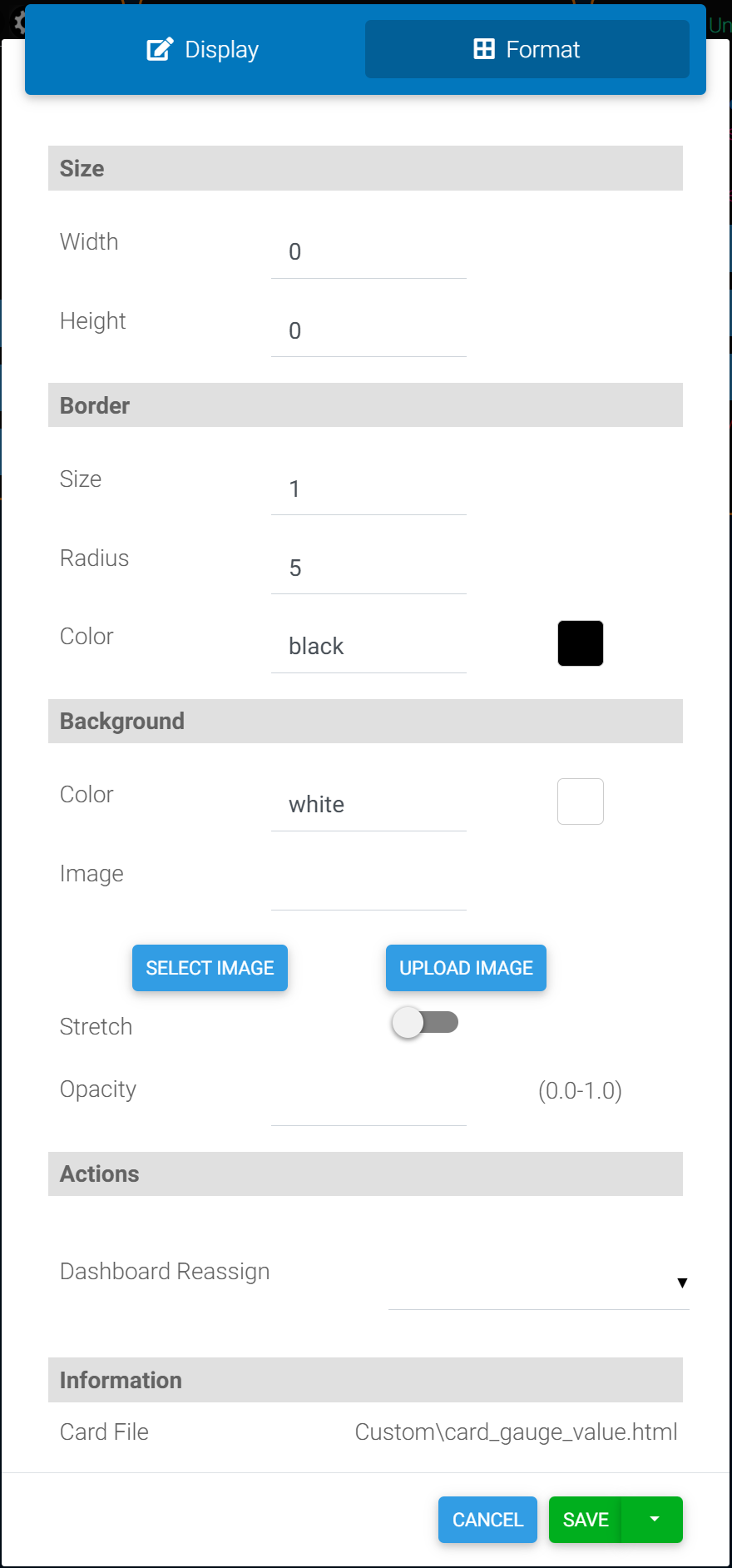
The display tab holds settings specific to the card and will be different for each card. The Format tab holds settings for the format of the card. These settings are the same for all cards. It holds settings like the card background color or image, allows for moving the card to another dashboard, and displays the card file that is being used.
Note that the Save button has a drop list with some save options.
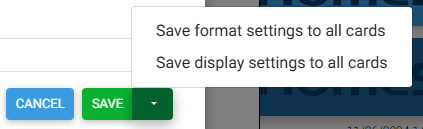
Clicking save simply saves the settings for the current card. Clicking the drop list allows you to save the changes but also copy them to other cards on the dashboard. You can copy just the format tab, or the display tab. For example, you change the background color of the card and want this new color on all your cards. Rather then editing each card, just select the option to copy all the format settings to all cards. Note that the copy only applies to the current dashboard. Other dashboards are not affected.
For setting the background color, enter “transparent” to allow the card to not have a background. This is useful if you have a background on the dashboard and wish to place cards at specific locations but don’t need the card borders. Such as a floorplan.
-
Developing Custom Cards for Dashboards Describes how to develop your own custom cards and share them with others.
-
User Contributed Cards Describes where to find cards created by users
-
Adding Cards to a Dashboard Describes how to add custom cards to a dashboard and manage them.
-
Custom Card - Multi Feature -
Custom Card - 5 Day Forecast -
Custom Card - Gauge -
Custom Card - Buttons -
Custom Card - Device Status Icon -
Custom Card - Status Text -
Custom Card - Notifications