

Describes how to edit cards.
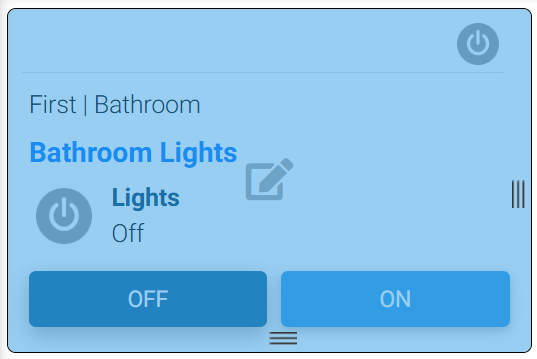
Cards can only be edited while the dashboard is in edit mode. While in edit mode, cards will not update if they are referencing a device, a camera, or any external data. In all layouts except Row/Col, cards may be clicked on and dragged to new locations. In resizable layouts, the cards may be resized by clicking and dragging on the card drag handles. To edit a card, hover your mouse over a card and it will show as selected and display an edit icon:
Now click anywhere on the card and a menu bar will appear:
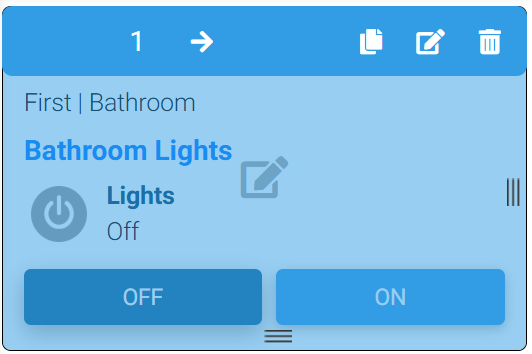
This menu bar has the following options:
-
The arrows allow for moving the card to a different location, same as dragging. The number is the order of the card on the page. The system attempts to layout cards in this order, but since the view is a packed layout, the order may not be exact. For the “Fixed Resizable” layout, the arrows and number are not used.
-
The copy icon allows for creating a copy of the card.
-
The edit icon will display a dialog where the card can be configured.
-
The trashcan icon will delete the card from the dashboard.