

Note: Requires HS4 version 4.2.23.0 or later
Overview
Dashboards are a powerful feature that allow you to organize your devices and cameras into groupings of your choice. Your devices appear on “cards” as shown in the “Batteries” dashboard example here. Cards may be added that look similar to the cards on the devices page. Foro more customization of cards, see the Custom Cards section.
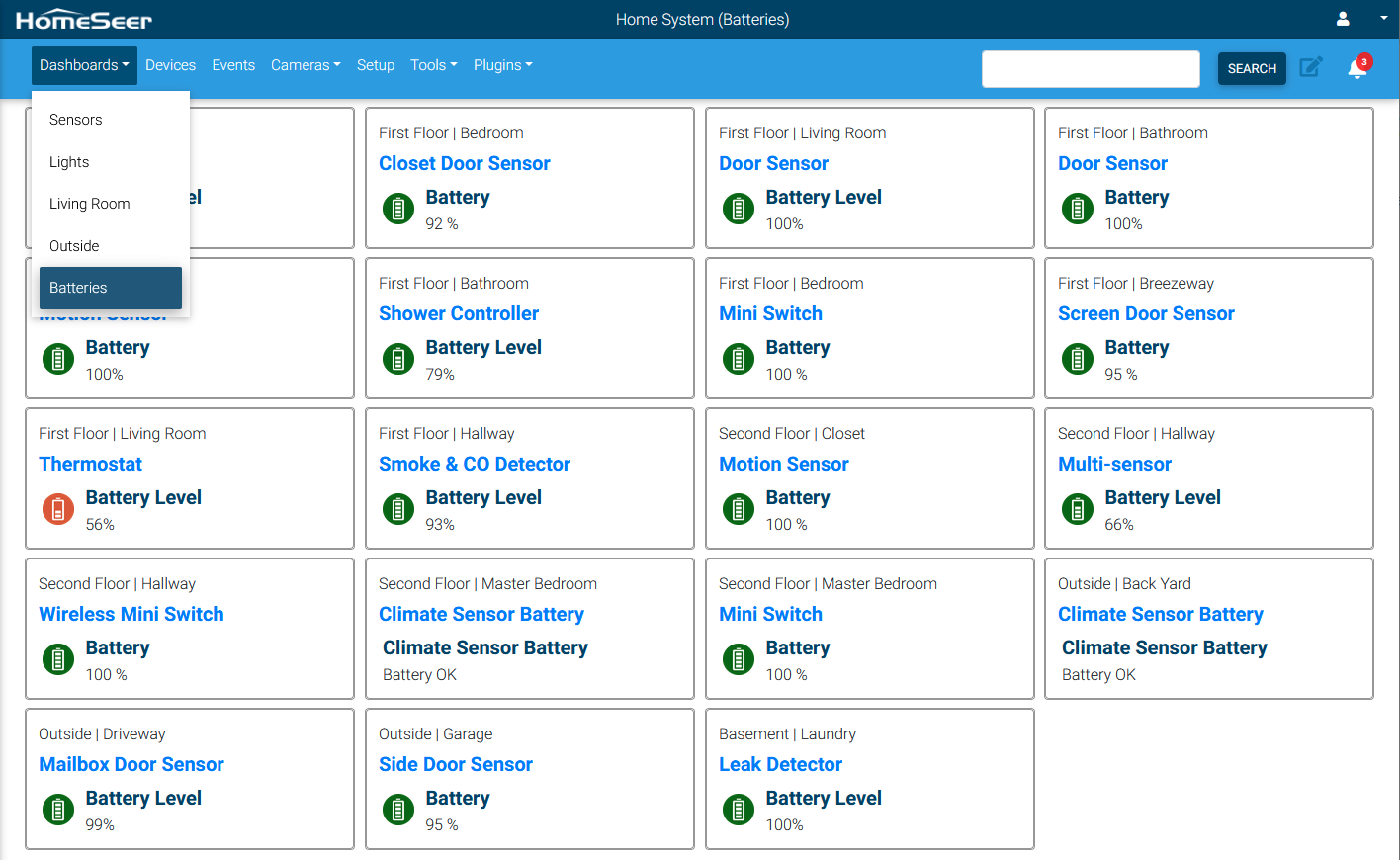
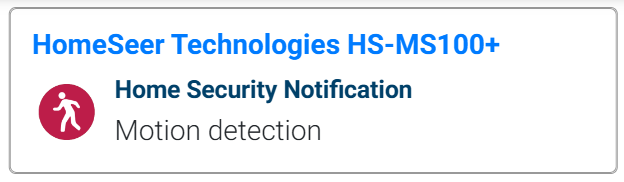
The order of these cards can be changed and the cards can be modified to include or exclude any of its elements. For example, a card that displays a motion sensor could just show the name of the sensor and the motion status.
Adding Devices or Cameras to a Dashboard
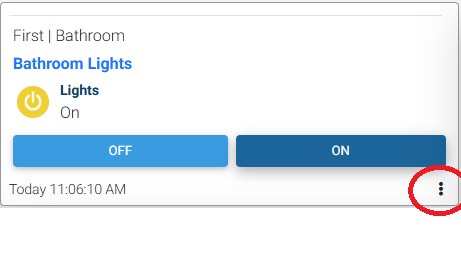
To add a device or camera view to a new or existing dashboard, navigate to the Devices page or Cameras page, then click the 3-dot button at the right (as shown below).
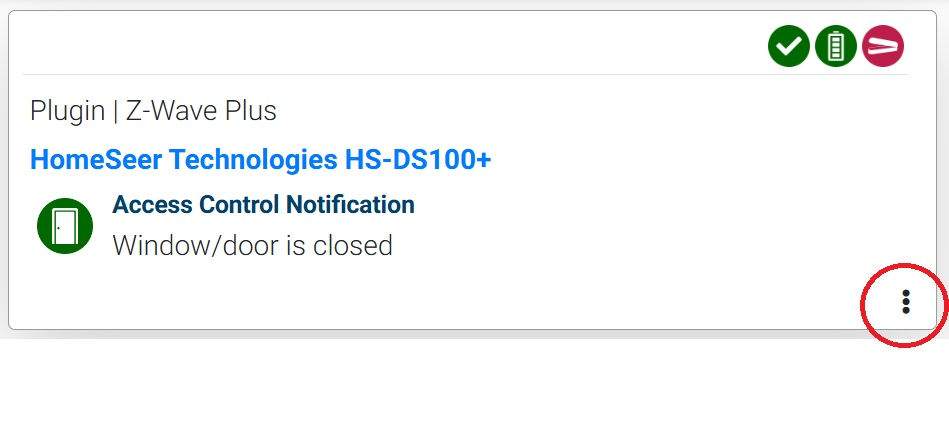
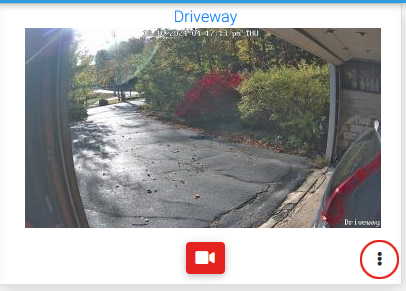
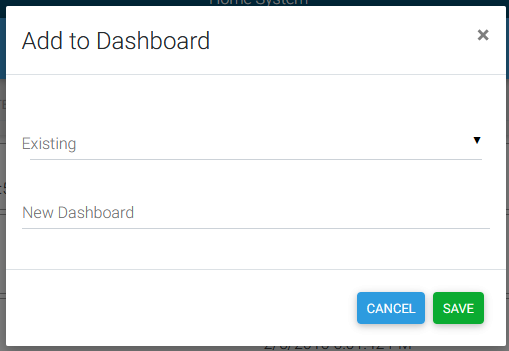
From the Add to Dashboard pop-up, select an existing dashboard (if available) from the Existing menu or enter a New Dashboard name and click SAVE.
Adding Custom Cards to a Dashboard
If a dashboard is in edit mode, a “+” icon will appear on the lower right side of the screen. Clicking this will bring up the Add Card dialog where you can pick a custom card to add. Cards may also be added from the Options drop list at the top of the page.
Viewing Dashboards
By default, no dashboards exist in the system and the dashboards menu will not be visible. Once a dashboard is created, it will appear in the list on the navigation bar. If only a single dashboard exists, only the name of that dashboard will be shown. The list will appear if more than one dashboard has been created.

Editing a Dashboard
After selecting a dashboard from the navigation bar, a new page is displayed showing all the devices/cameras/custom cards you have added. Dashboards may be edited to change the card layout, card order, and overall settings for the dashboard. To enter edit mode, click on the edit icon at the top of the page.

The edit icon will be red while in edit mode. Click the icon again to exit edit mode.
Creating Dashboards
There are a couple of different ways to create a dashboard. If you are creating a card that will control a device, you can find the card in the devices list or grid view and click on the 3 dots on the device card. This will display a dialog where you can create a new dashboard or add the device to an existing dashboard.
If you want to create a dashboard with custom cards, click on the Dashboards menu on the navigation bar, or the current dashboard name if you are already viewing a dashboard. Then select “Add Dashboard”. This will prompt you for the name of your new dashboard. Add a name and click “Save”. A new blank dashboard will be created.