

Describes how to add custom cards to a dashboard and manage them.
Adding Cards to a Dashboard
To add a card to a dashboard, the dashboard must be in edit mode. Click on the drop list on the navigation bar and select “Add Card”. A new dialog appears.
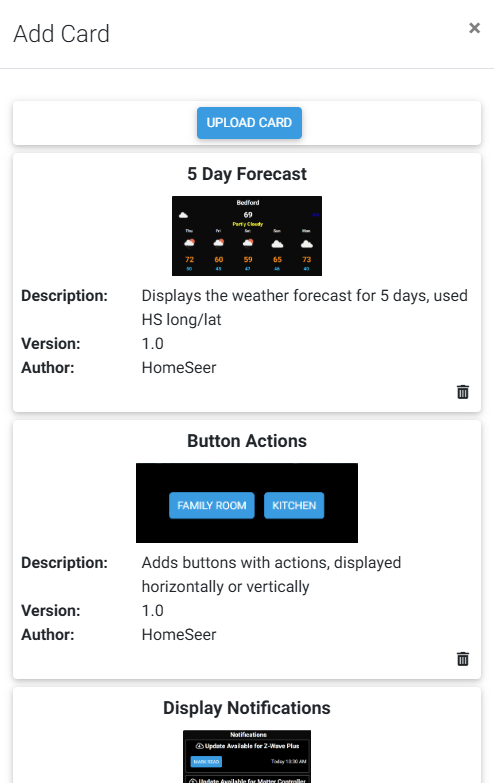
From this dialog, click on a card to add it to the existing dashboard. Note that these are card templates, not the actual cards on your dashboard. By clicking on a card, a new card is created and then added to the dashboard. The new card is set with default settings and will need to be edited for your use.
Click on the trashcan to delete the card template. Note that you will no longer be able to create this type of card. This is most useful if you upload a third-party card and decide you no longer need it.
Click on the “Upload Card” button to upload a card. The card must be an HTML file and be in a specific format. An error will be displayed if the card is not formatted properly.
The following custom cards are included.