

Use this guide to set an IP address reservation for your Z-NET PRO
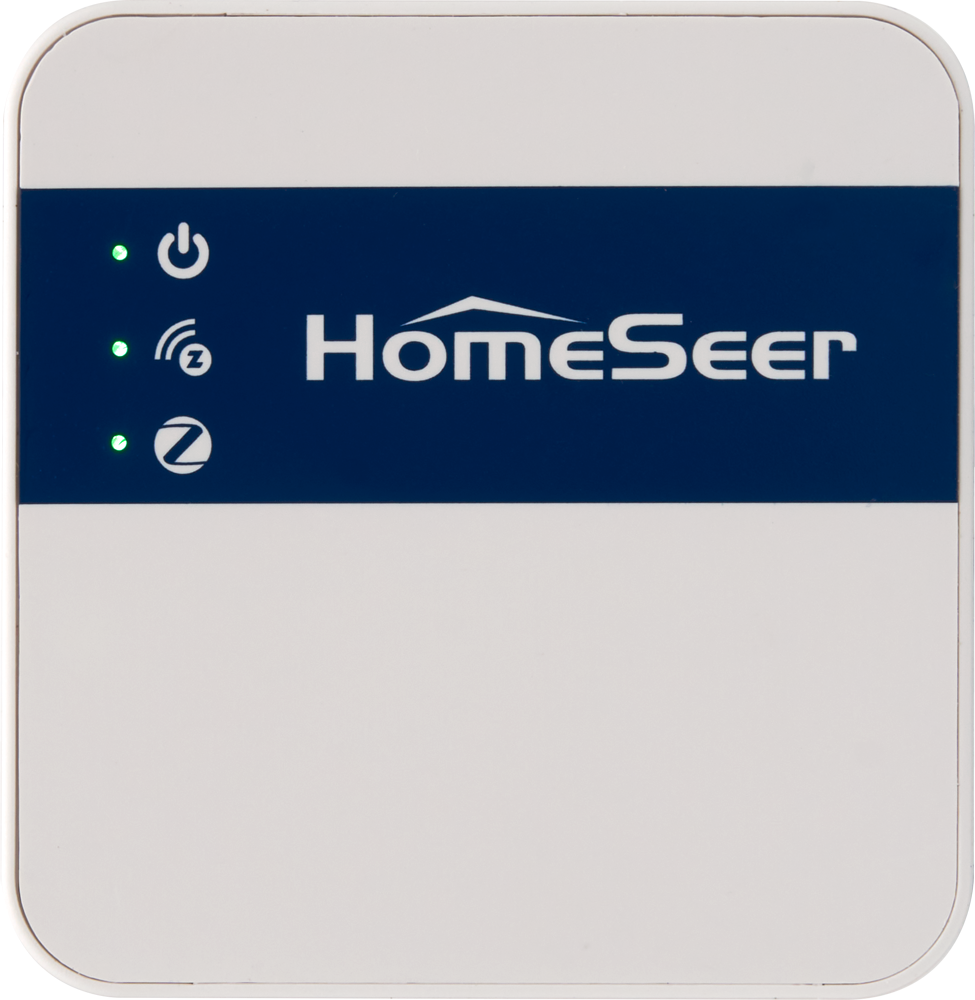
Z‑NET PRO Router Address Reservation Guide
Setting a reserved IP address for your Z‑NET PRO ensures it always uses the same address on your network. This is important for reliable communication with your smart home hub (HomeSeer, Home Assistant, or other controllers) and avoids issues with devices temporarily “losing” the interface due to DHCP-assigned IP changes.
How to Reserve an IP Address
These are the typical steps required to set an address reservation with most routers. Be sure to refer to your router’s manual for detailed instructions.
-
Find the Z‑NET PRO’s current IP
-
On a computer or mobile device, go to the Z‑NET PRO Web Interface:
http://find.homeseer.com -
Note the IP address listed on the status page.
-
-
Log into your router
-
Open your router’s admin page through your default gateway address (most commonly 192.168.1.1 or 10.0.0.1 or via your router app).
-
Locate the DHCP / Address Reservation or LAN Setup section.
-
-
Add a reservation
-
Select or enter the Z‑NET PRO MAC address (as found on the Z-NET PRO Web UI & Settings).
-
Assign it the IP address you want it to always use.
-
Save/apply changes.
-
-
Reboot the Z‑NET PRO (optional)
-
Power cycle the unit so it requests its reserved IP.
-
Confirm the IP is now fixed by checking the Web Interface. If need be, reboot your router too.
-
Tips for Choosing the Reserved IP
-
Pick an IP inside the DHCP pool. Using the currently assigned IP address is fine.
-
Make sure the address you choose is not already assigned to another device.
Summary
|
Benefit |
Effect |
|---|---|
|
Stable IP |
Hub always connects reliably |
|
Fewer errors |
Automations run consistently |
|
Easy identification |
Quick troubleshooting |