

Manual Install
|
Windows |
Linux |
|---|---|
|
If you need to perform a new install or the update is not available through setup, run the installer |
For standard Linux tar file, check in setup for an update, or manually update with the TAR file |
Existing HS4 systems or HomeTroller Hubs
-
Navigate to Setup > General and click the CHECK UPDATE button.
-
Click the INSTALL UPDATE or INSTALL BETA button (depending on the release type).
-
Follow the directions that appear. This may take several minutes to complete.
Changes from 4.2.22.4 to 4.2.23.0
Highlights
-
This release upgrades the dashboard feature to now support custom dashboard cards. Read the docs here:
HS4 Dashboards
Full Change List
-
On Linux, events scheduled to run at midnight would run multiple times
-
If feature one in a device is set as important and feature two is set as hidden, not last change time is displayed in the grid view
-
Allow adding device last change to device dashboard card
-
Add media folder to backups
-
On Linux HSSentry is not disabled when HS is shut down from the tools menu or an update
-
If a control pair label contains a control char, HSTouch may not display data properly
-
Web server requests getting corrupted causing broken or missing pages
-
Changes to the HSTouch speaker client user/pass in the setup are not honored
-
Fixed apostrophe in dashboard name not allowing dashboard to be displayed
-
Fixed typos in bulk edit menu
-
Requested changes to how Windows updates are disabled
-
HS-2094 Fix for HSEvent not being called for some bulk actions
-
HS-2064 Fix "Auto Discover Known Camera Types" setting turning off after HS4 restart
-
HS-1904 Keep current color when opening a color picker from the devices page
-
Features on device card now use drag/drop to reorder features displayed
-
HS backups were including an old html.zip file, if it existed, this old file is now removed
-
Events configured without a TO email address would not save. The TO address is not required as it will use the default in setup if its missing
-
Added search phrases: “alexa”,”google”,”voice”
-
Add LAN MAC address to about page for setting up IP reservation
-
When restoring files from a back up, the restore will skip bad files as opposed to failing
-
Fixed issue with events disappearing after a power failure
-
Color picker now saves color when used on virtual devices
-
Notifications older than 365 days are automatically deleted, even if they are unread
-
Fixes to log timestamp, also now allows for millisecond display if a custom format is set
-
Added CultureInfo.InvariantCulture to log time display so it uses the system regional time format
-
Added a new setting to enable/disable HSTouch connection logging
-
Fixed plugin updates not being added to the notifications when the system is running
-
Fixed loading of sample data when setting up a new system
-
Fixed dashboards not loading when switching config files
-
Fixed FIND service where the system name might be accessible if using WIFI
-
Fixes to FIND service so it displays the HS4 custom site name if its not set to the default
-
HS-2022 Fixes to power fail recovery feature
-
Updated version of pluginSDK DLL to 1.5.1.0. See the plugin release notes.
Reverting to a Previous Version
If you wish to revert to a previous version, you'll need to follow the steps below. Starting with beta 4.2.17.2, a new backup feature was added to back up your configuration whenever you update your HS4 version. The backup may be retrieved from Setup.
When running Beta versions of HS4 it is advised that you always perform a backup from the Tools menu. This is an alternate way to go back to a previous config.
Windows
-
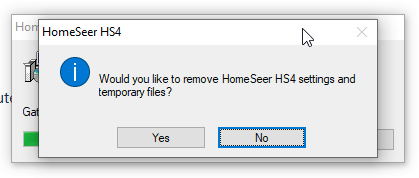
Uninstall the beta. Do not remove HS4 settings and temporary files.
-
Install the previous version.
-
Launch HS4 and navigate to Setup > General and click Edit Config
-
Select the config file that was created when the beta was installed. The name will contain _before_4.2.x.x.json
-
Check your events to confirm they're all there and the actions are correct
Linux
-
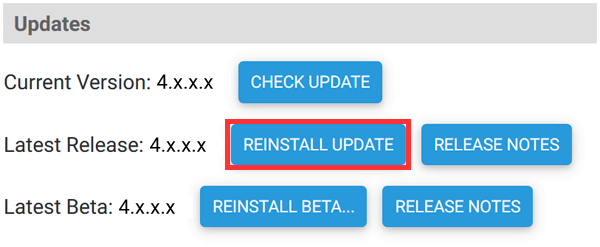
Navigate to Setup > General and click REINSTALL UPDATE
-
Once installation is complete, navigate to Setup > General and click Edit Config
-
Select the config file that was created when the beta was installed. The name will contain _before_4.2.x.x.json
-
Check your events to confirm they're all there and the actions are correct